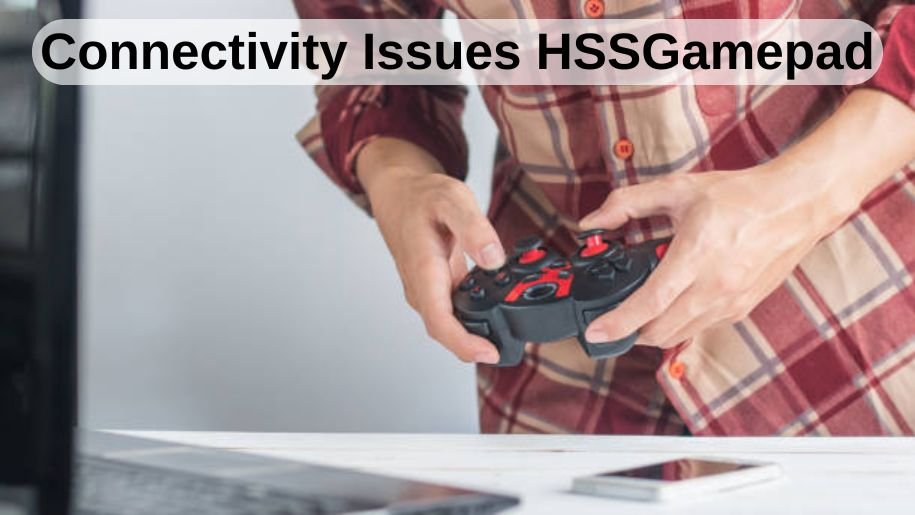

Gaming controllers have evolved significantly, allowing players to connect across mobile phones, PCs, smart TVs, and even cloud gaming platforms. The HSSGamepad is designed to deliver flexible connectivity through Bluetooth and wired options, but like many modern controllers, users sometimes experience connection problems that interrupt gameplay. These connectivity issues can range from simple pairing failures to more complex problems like input lag, unstable signals, or sudden disconnections.
Understanding why these issues happen is important because many players assume their controller is faulty when the real cause lies elsewhere. Connectivity problems often come from environmental interference, software conflicts, incorrect settings, or outdated firmware rather than hardware damage. This article explains in detail what connectivity issues HSSGamepad users commonly face, why they occur, and how to resolve them effectively without unnecessary frustration.
Understanding How HSSGamepad Connectivity Works
Before diving into specific problems, it helps to understand the basics of how the HSSGamepad connects to devices. Most models rely on Bluetooth technology for wireless play, while also offering USB connectivity for stable wired performance. Bluetooth allows convenience and mobility, but it also introduces potential challenges such as signal interference, compatibility differences, and power management limitations.
The controller typically operates in different modes depending on the platform, such as Android mode, iOS mode, or PC mode. Each mode uses different communication protocols, which means that selecting the wrong mode can cause pairing failures or incorrect input mapping. Additionally, operating systems frequently update their Bluetooth handling, which may affect how controllers behave after updates.
When connectivity works properly, the controller pairs quickly, maintains a stable signal, and delivers responsive inputs. However, when any part of the chain—hardware, software, or environment—experiences disruption, issues begin to appear.
Common Connectivity Problems Users Experience
Pairing Failures
One of the most frequent complaints is the inability to pair the controller with a device. Users may see the controller appear in the Bluetooth list, but the connection fails or disconnects immediately. This problem often arises when the controller is already paired with another device or when old pairing data conflicts with new connections.
Random Disconnections
Another widely reported issue is the controller disconnecting during gameplay. This can be particularly frustrating during competitive matches or long gaming sessions. Disconnections usually happen because of low battery levels, wireless interference, or system power-saving features that automatically reduce Bluetooth activity.
Input Lag and Delayed Response
Some players notice that button presses register slowly or feel unresponsive. While this may appear to be a performance issue, it is often linked to Bluetooth signal strength or background processes consuming system resources. Wireless gaming relies on stable communication between devices, and any delay in that communication can create noticeable lag.
Controller Not Detected
In certain situations, the controller is not recognized at all, especially on PCs. This problem may be caused by missing drivers, incompatible firmware versions, or using USB hubs that fail to provide stable power.
Key Causes Behind Connectivity Issues
Power and Battery Problems
Battery health plays a major role in wireless performance. A low battery weakens signal strength and may cause intermittent disconnections. Some users overlook this simple factor and attempt complicated troubleshooting when the solution is as straightforward as charging the controller fully.
Wireless Interference
Modern homes are filled with devices operating on similar wireless frequencies, including routers, wireless headphones, and smart appliances. These signals can overlap, reducing the reliability of Bluetooth connections. Gaming in environments with heavy wireless traffic increases the chances of lag or dropped connections.
Firmware and Software Conflicts
Controllers depend on firmware to communicate with devices. When firmware becomes outdated or incompatible with newer operating systems, connectivity problems appear. Similarly, third-party apps designed for button mapping or controller customization may interfere with normal operation.
Device Compatibility Limitations
Not every device supports the same Bluetooth standards or input protocols. Older phones or PCs with outdated Bluetooth versions may struggle to maintain stable connections. Additionally, some games themselves offer limited controller support, which can make it seem like a connection problem even when the controller is functioning correctly.
Symptoms That Indicate Connectivity Trouble
Connectivity issues rarely appear without warning signs. Many users report blinking LED indicators that never become steady, signaling incomplete pairing. Others notice that the controller works perfectly through a cable but fails wirelessly, pointing toward Bluetooth interference or software conflicts.
Another common symptom is inconsistent button recognition. Players may find that analog sticks work while triggers do not, suggesting a mode mismatch rather than a hardware defect. Recognizing these patterns helps narrow down the true cause of the issue.
The Role of Environment in Connection Stability
The physical environment plays a larger role in controller performance than many gamers realize. Distance from the device, physical obstacles such as walls or metal surfaces, and crowded wireless channels can all degrade signal quality. Gaming in a room filled with multiple active Bluetooth accessories increases competition for bandwidth.
Temperature and power-saving settings can also influence connectivity. Some devices limit Bluetooth activity when battery saver modes are active, causing unexpected disconnections. Simply moving closer to the device or turning off unnecessary wireless accessories can significantly improve stability.
Importance of Correct Setup and Pairing Process
A proper pairing sequence is essential for smooth connectivity. Users often rush through the process without resetting previous connections, leading to pairing loops or partial recognition. Clearing old Bluetooth entries, restarting both devices, and initiating pairing in the correct mode can prevent many issues before they start.
Correct setup also includes verifying that the device recognizes the controller as a gamepad rather than a generic input device. When recognized incorrectly, certain buttons may fail to respond or games may not detect the controller at all.
Wired vs Wireless Connectivity
While wireless gaming offers convenience, wired connections remain the most stable option. Using a USB cable eliminates interference and reduces input latency. Many players switch to wired mode temporarily to confirm whether the issue lies with Bluetooth or with the controller itself.
However, even wired connections can encounter problems if low-quality cables or damaged ports are involved. Ensuring a direct connection to the device rather than through a hub often resolves these issues.
Troubleshooting Strategies That Actually Work
Effective troubleshooting begins with the simplest steps. Fully charging the controller, restarting devices, and removing old Bluetooth pairings can resolve many problems quickly. Updating firmware and operating systems is another essential step, as manufacturers frequently release patches to address compatibility issues.
If problems persist, testing the controller on a different device helps determine whether the issue is related to the controller or the original system. Resetting the controller to factory settings is another powerful method for eliminating hidden configuration conflicts.
It is also helpful to check for background apps that manage inputs or overlays. These apps may conflict with the controller’s native communication system, causing delays or disconnects during gameplay.
Preventing Future Connectivity Problems
Prevention is often easier than troubleshooting repeated issues. Keeping firmware updated, maintaining a healthy battery level, and minimizing wireless interference create a more reliable gaming environment. Regularly cleaning USB ports and storing the controller safely also reduces the risk of physical damage that could affect connectivity.
Choosing the correct mode for the target device and avoiding excessive pairing with multiple devices helps maintain stable performance over time. When users treat connectivity as part of overall system maintenance rather than an occasional annoyance, long-term reliability improves significantly.
Conclusion
Connectivity issues with the HSSGamepad can feel frustrating, especially when they interrupt gaming sessions unexpectedly. However, most problems do not stem from hardware failure. Instead, they are usually caused by environmental factors, software conflicts, outdated firmware, or simple setup mistakes. By understanding how the controller communicates with devices and recognizing early warning signs, players can diagnose issues more effectively.
A structured troubleshooting approach—starting with battery checks and pairing resets and moving toward firmware updates and compatibility checks—can resolve the majority of problems. Ultimately, stable connectivity comes from a combination of proper setup, awareness of wireless environments, and regular maintenance.
Frequently Asked Questions (FAQs)
Why does my HSSGamepad keep disconnecting randomly?
Random disconnections are commonly caused by low battery levels, Bluetooth interference from nearby devices, or power-saving settings that limit wireless activity.
How do I fix pairing problems with HSSGamepad?
Start by removing old Bluetooth pairings, restarting both devices, and ensuring the controller is in the correct compatibility mode before attempting to reconnect.
Is input lag normal when using HSSGamepad wirelessly?
Minor latency can occur with Bluetooth connections, but significant lag usually indicates signal interference, outdated firmware, or heavy background processing on the device.
Why does my controller work with a cable but not Bluetooth?
This often means the issue is related to wireless interference, device compatibility, or incorrect pairing settings rather than a hardware failure.
Can software updates cause connectivity issues with HSSGamepad?
Yes, system updates sometimes change Bluetooth handling or controller support. Updating the controller firmware and checking compatibility settings usually resolves these problems.